How to Improve Image Quality Online
Learn how to improve blurry, dark, or low-quality images online using simple editing techniques.
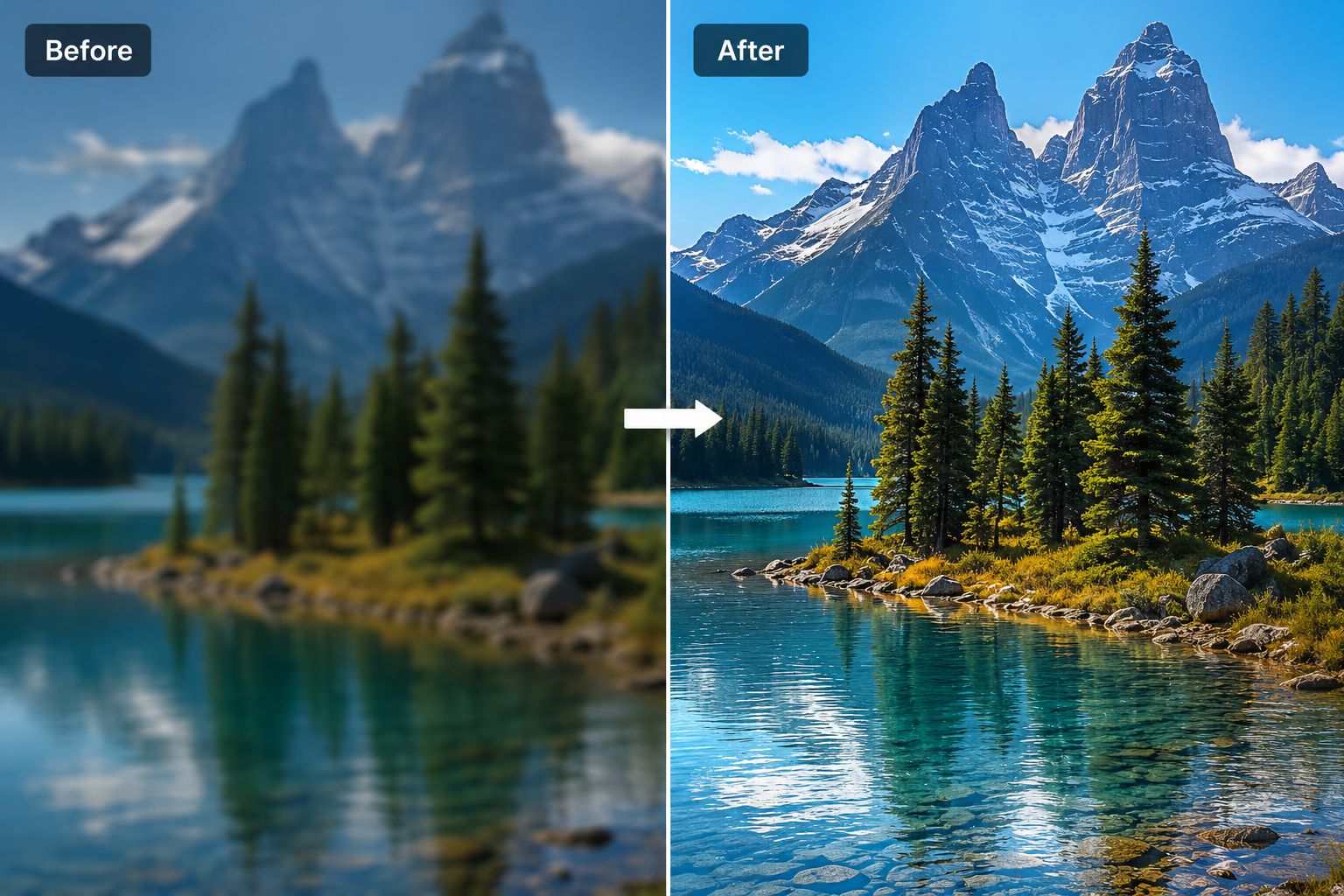
Low-quality images can make your content look unprofessional. A blurry photo, poor lighting, or low resolution can reduce trust and make people ignore your design.
The good news is that you can improve image quality online without using complicated software.
Why Image Quality Matters
High-quality images help your content look more professional. This is important for YouTube thumbnails, websites, online stores, social media posts, and profile pictures.
A sharp image can make your design feel more trustworthy and attractive.
Common Image Quality Problems
Blurry images
Dark photos
Low resolution
Pixelated graphics
Poor contrast
Faded colors
How to Improve Image Quality
Start by increasing sharpness. This helps details look clearer.
Then adjust brightness and contrast. A dark image can often be improved with better lighting adjustments.
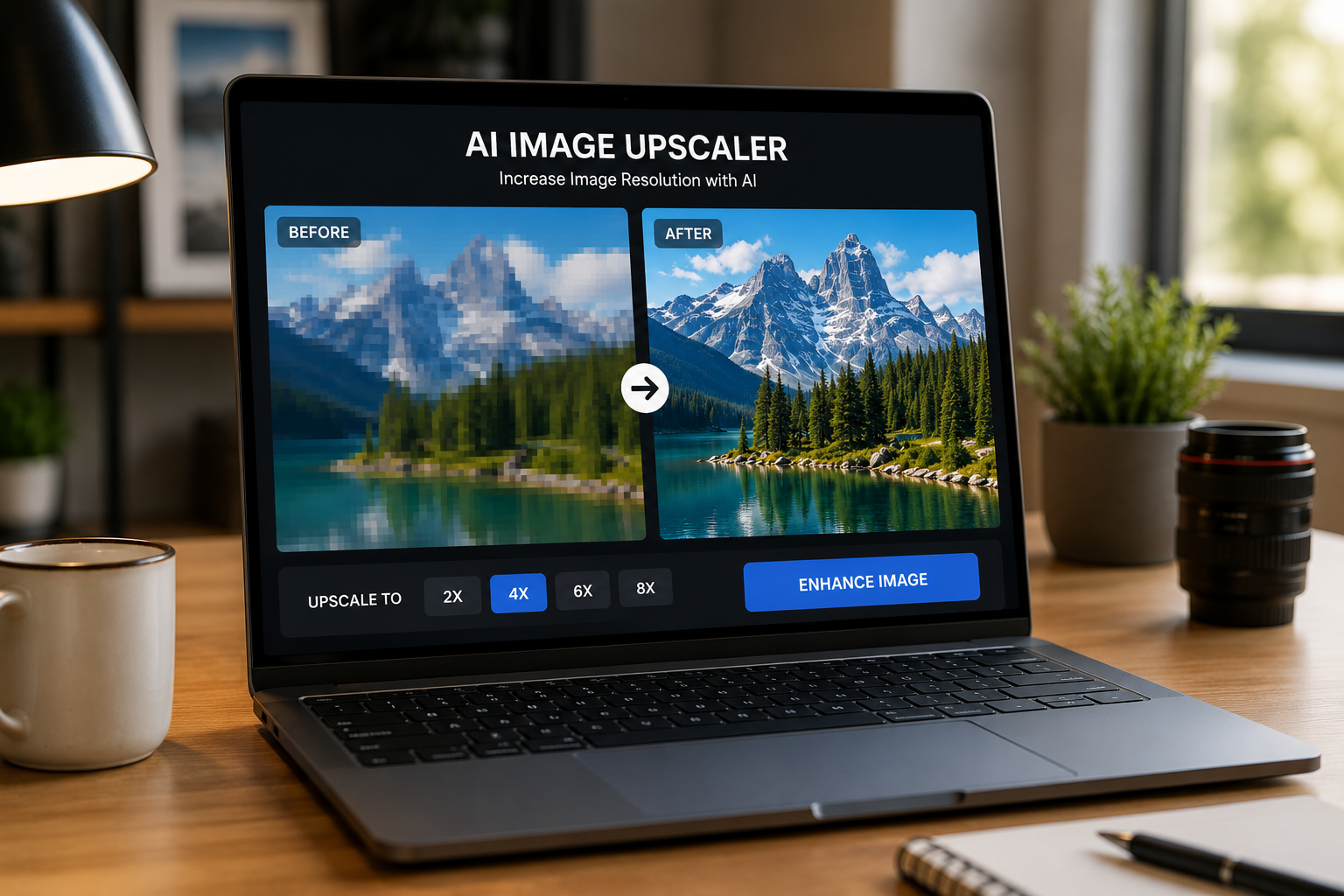
You can also increase resolution using an image upscaler.
Use Better Source Images
The better the original image, the better the final result. Try to use photos with good lighting, clear focus, and enough resolution.
Avoid screenshots or heavily compressed images when possible.
Best Uses for Image Enhancement
YouTube thumbnails
Product images
Old photos
Blog images
Social media graphics
Marketing banners
Final Thoughts
Better image quality can improve the way people see your content.
Use Pixores Image Enhancer to make your images sharper, cleaner, and more professional.
Learn more in How to Create a YouTube Thumbnail.
Try the Pixores Thumbnail Maker.