How to Reduce Image Size Without Losing Quality
Learn how to compress images online while keeping them sharp and professional.
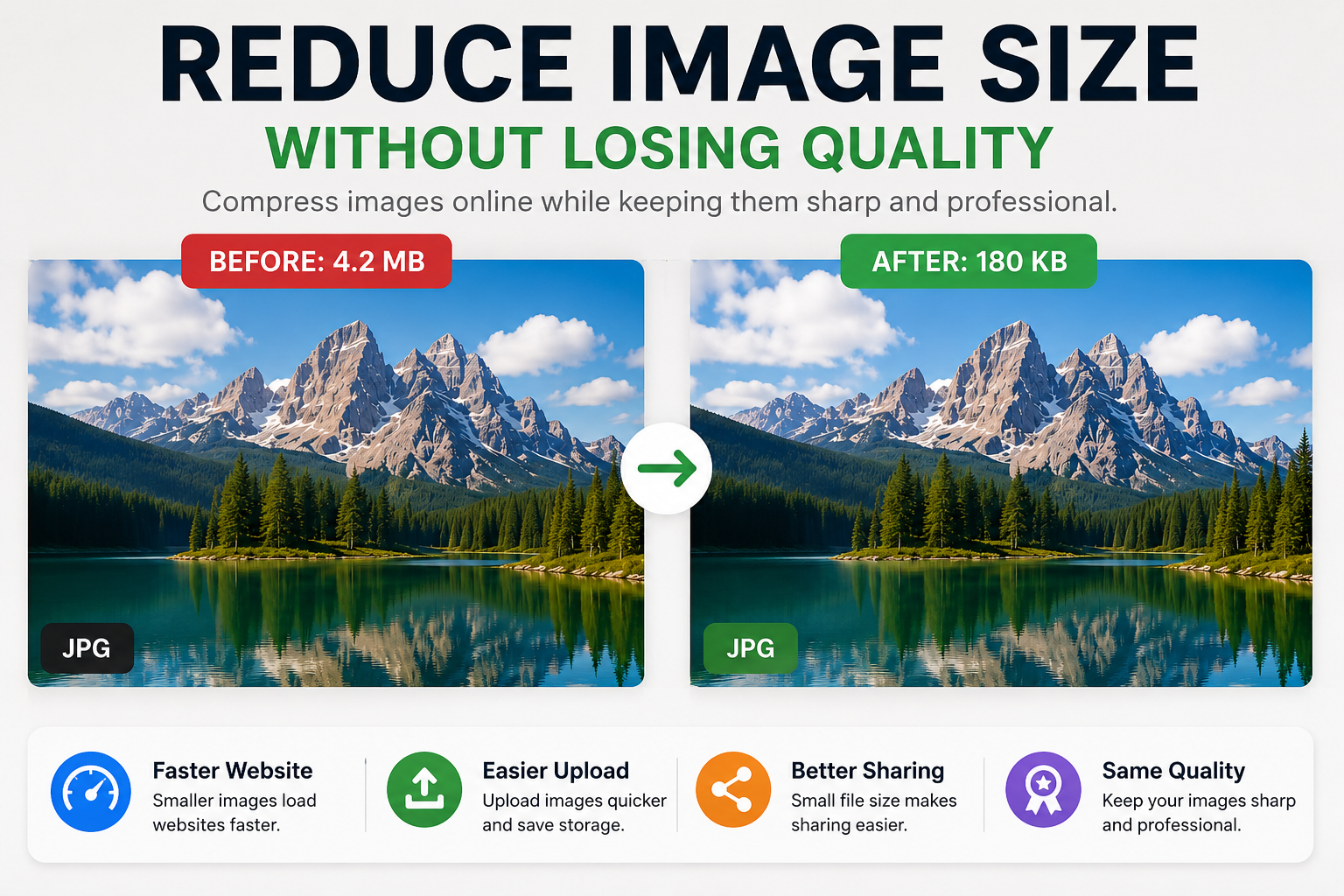
Large image files can slow down websites, take longer to upload, and make sharing more difficult.
Reducing image size helps your website load faster and improves the user experience.
Why Image Size Matters
Images are often one of the biggest reasons a website loads slowly. A slow website can hurt SEO, reduce conversions, and frustrate visitors.
Smaller image files are better for:
Websites
Blogs
Online stores
Email marketing
Social media uploads
Compression vs Quality
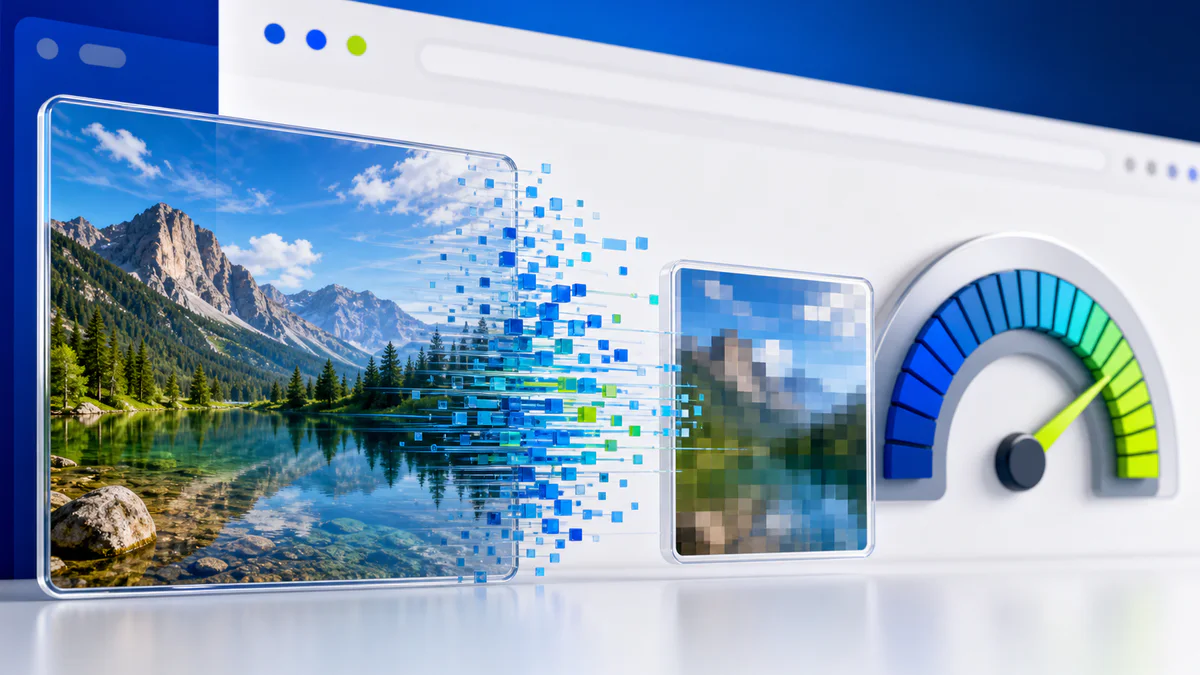
Image compression reduces file size. The goal is to make the file smaller while keeping the image visually sharp.
Good compression should reduce file size without making the image look blurry or pixelated.
Best Formats for Smaller Images
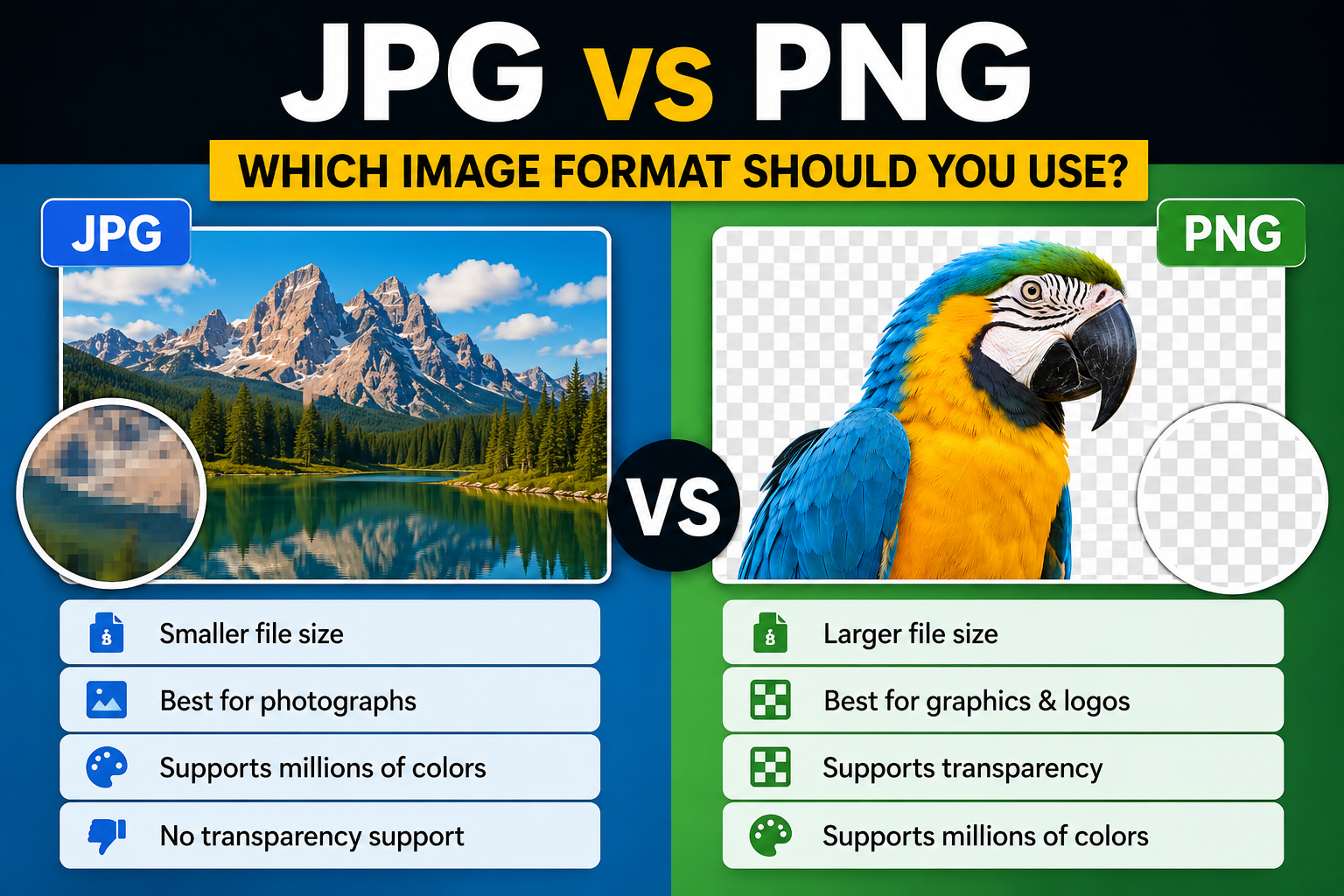
JPG is good for photos.
WebP is excellent for websites because it keeps good quality with smaller file sizes.
PNG is better for sharp graphics but usually creates larger files.
Tips to Reduce Image Size
Use the correct dimensions.
Compress the image before uploading.
Convert large PNG files to WebP when possible.
Avoid uploading oversized images to your website.
Final Thoughts
Reducing image size can make your website faster and more professional.
Use Pixores Image Compressor to reduce image file size while keeping good quality.
Learn more in How to Create a YouTube Thumbnail.
Try the Pixores Thumbnail Maker.