Best Image Format for Social Media: JPG, PNG, or WebP?
Choose a practical image format for social posts, thumbnails, transparent graphics, and cross-platform publishing.

The safest default
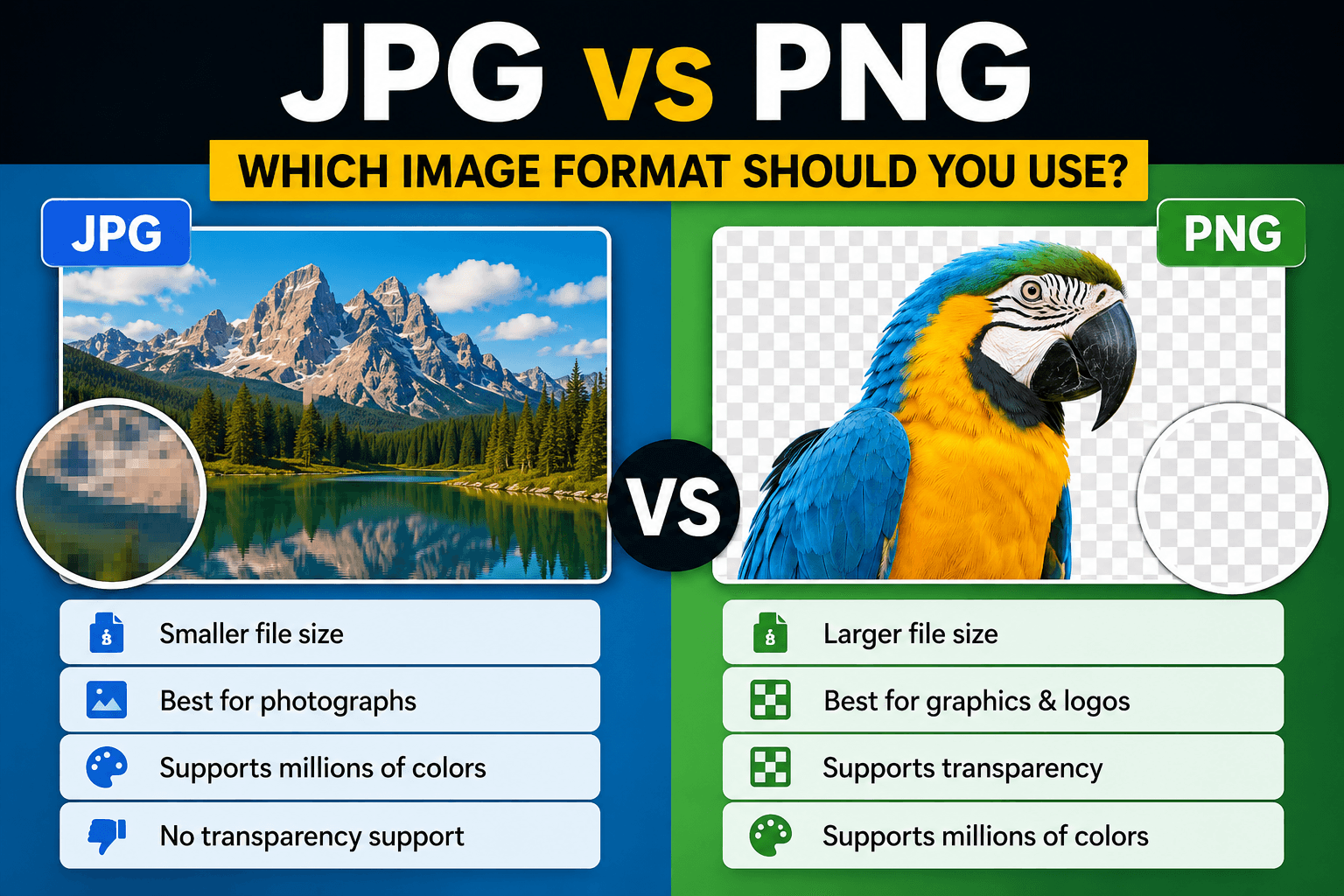
For ordinary social media photographs, high-quality JPG is the safest default. For graphics that need transparency or exceptionally crisp flat elements, PNG is usually more appropriate. WebP is excellent for websites, but direct social upload support and downstream editing workflows can vary, so keep a JPG or PNG export available.
Platforms normally process uploaded media again. Your goal is to provide a clean, correctly sized source that survives that processing well.
Choose JPG for photographs
JPG handles detailed photos and smooth color transitions efficiently. It is widely accepted and produces manageable files. Export once from a high-quality master instead of repeatedly downloading and resaving social copies, which can accumulate artifacts.
If a platform or client needs JPG, use PNG to JPG or WebP to JPG to create a compatible delivery version.
Choose PNG for transparency and sharp graphics
PNG can preserve transparent backgrounds, crisp text, and flat-color graphics. It is useful for logos you own, interface-style illustrations, cutouts, and designs that would show obvious JPEG artifacts. The tradeoff is a potentially larger file, especially for photographic content.
For a transparent subject, follow the transparent PNG guide. Do not convert that file to regular JPG if transparency must remain.
Use WebP primarily for web delivery
WebP can offer good visual quality at smaller file sizes and supports transparency. It is a strong choice for website articles and landing pages. Before using it as a direct social upload, confirm that the specific publishing tool accepts it and preserves the result you expect.
The detailed WebP, AVIF, and JPEG comparison can help with website decisions.
Format does not fix the wrong dimensions
A perfect PNG can still be cropped badly if its aspect ratio does not match the placement. Prepare the canvas using the social media image size guide, then choose the format. Crop composition before export rather than trusting the platform to select the important area.
What happens after upload
Most large social platforms generate their own display copies from the file you provide. They may resize, recompress, strip some metadata, or create several derivatives for different screens. That is why an upload can look slightly different from the local preview. Give the platform a clean source with sensible dimensions, but do not waste time trying to predict its exact internal compression settings.
After publishing, inspect the post in the feed and full-screen view. Fine text, gradients, and dark shadows are useful areas to check. If the result is poor, return to the master and adjust the export instead of processing the downloaded social copy.
Check color and file size
Export in RGB color for screen publishing. Extremely large uploads take longer and may be processed more aggressively. If a photo is unnecessarily heavy, create a lighter copy with the image compressor while checking the result at normal viewing size.
Recommended workflow
- Keep an editable high-quality master
- Create the correct aspect ratio for each placement
- Export JPG for photos or PNG for transparent graphics
- Preview the actual upload on mobile
- Keep filenames organized by platform and ratio
- Preserve the master for future changes
Final recommendation
JPG is the practical social-photo default, PNG is the dependable transparency choice, and WebP is strongest as a modern website format. Compatibility, composition, and visual quality matter more than choosing the newest extension.
Reproducible field check
Destination acceptance check
Select a social delivery file from the platform's actual behavior rather than the newest extension.
Procedure
- Prepare a correctly sized JPG and, when transparency matters, a PNG from the same master.
- Upload a private or draft example through the intended publishing workflow.
- Inspect recompression, crop, transparency, and text clarity on mobile before publishing the final asset.
Record these observations
- Platform
- Input format
- Input bytes
- Observed recompression
- Crop or transparency result
Pass condition: The platform accepts the file and preserves the intended composition without unnecessary size or lost transparency.