How to Create a YouTube Thumbnail for Free
Learn how to create professional YouTube thumbnails for free using simple online tools.
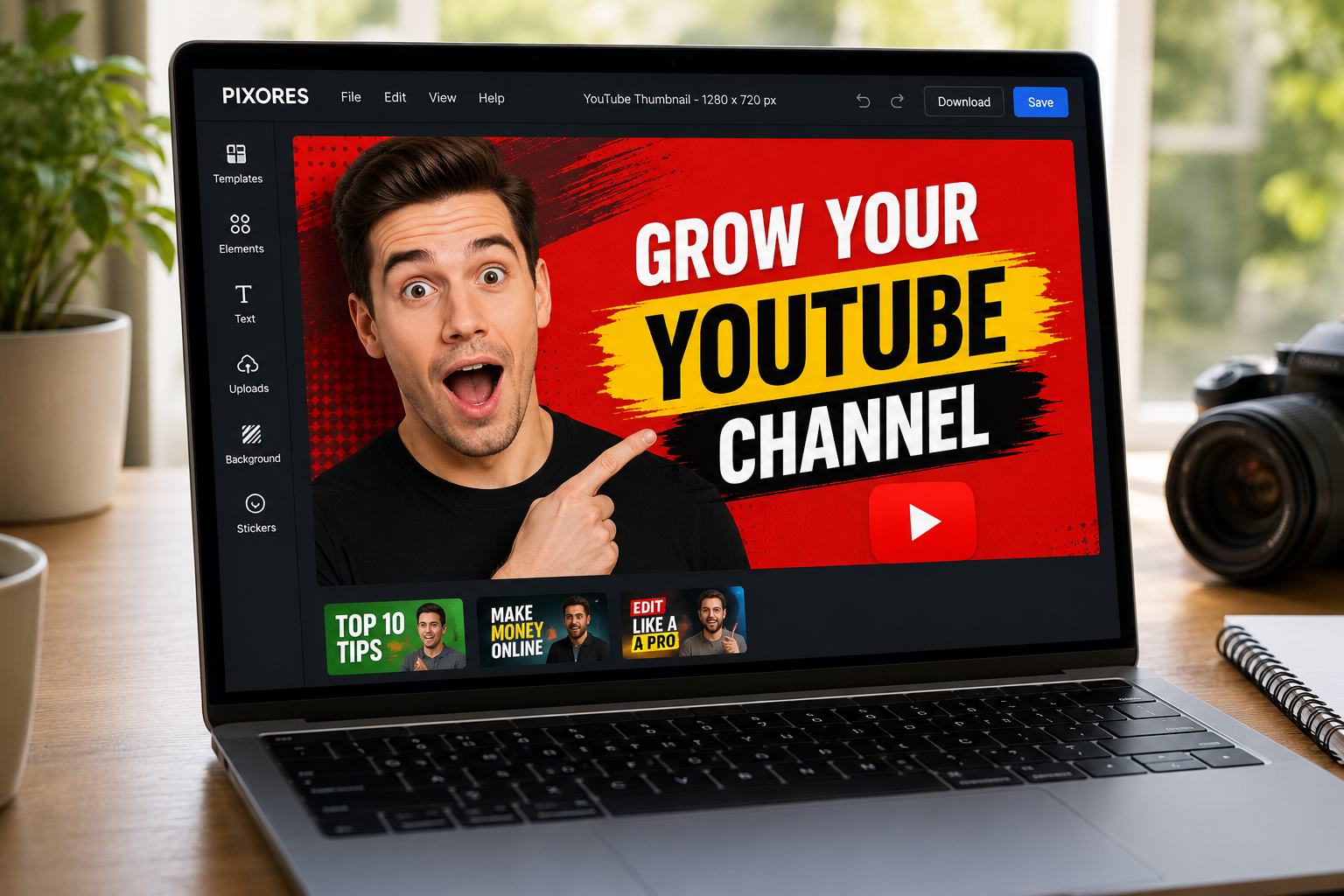
You do not need expensive design software to create a professional YouTube thumbnail. With the right online tool, you can make thumbnails quickly and for free.
A good thumbnail helps your video get noticed and can improve your click-through rate.
Step 1: Choose the Right Size
Use 1280 x 720 pixels with a 16:9 aspect ratio.
This is the recommended YouTube thumbnail size.
Step 2: Pick a Strong Image
Choose a clear photo that represents your video. If possible, use a face with emotion or a strong visual subject.
Step 3: Remove the Background
Removing the background helps your subject stand out. You can place the subject on a cleaner or more dramatic background.
Step 4: Add Short Text
Use 2 to 5 words. Make the text big and easy to read.
Examples:
The Truth
Big Mistake
Watch This
Finally
Before You Quit
Step 5: Use Contrast
Use colors that stand out. Yellow, red, white, and black are popular because they are easy to see.
Step 6: Export in High Quality
Download your thumbnail in JPG, PNG, or WebP.
Final Thoughts
Creating a YouTube thumbnail for free is simple when you use the right workflow.
Use Pixores Thumbnail Creator to create free YouTube thumbnails online without complicated software.
Learn more in How to Create a YouTube Thumbnail.
Try the Pixores Thumbnail Maker.